Config Editor admin UI
Everything the CLI and hand-edited YAML files can
do also has a form-driven counterpart in wp-admin: the Config Editor,
a top-level admin menu (dashicon editor-code) the free plugin registers.
It’s the same visual editor used to compose page content (mounted via the
same .sek-editor contract), pointed instead at a config file, with a
postId: 0 synthetic context standing in for “no post, just a config
being edited.”
Sections and Post Types
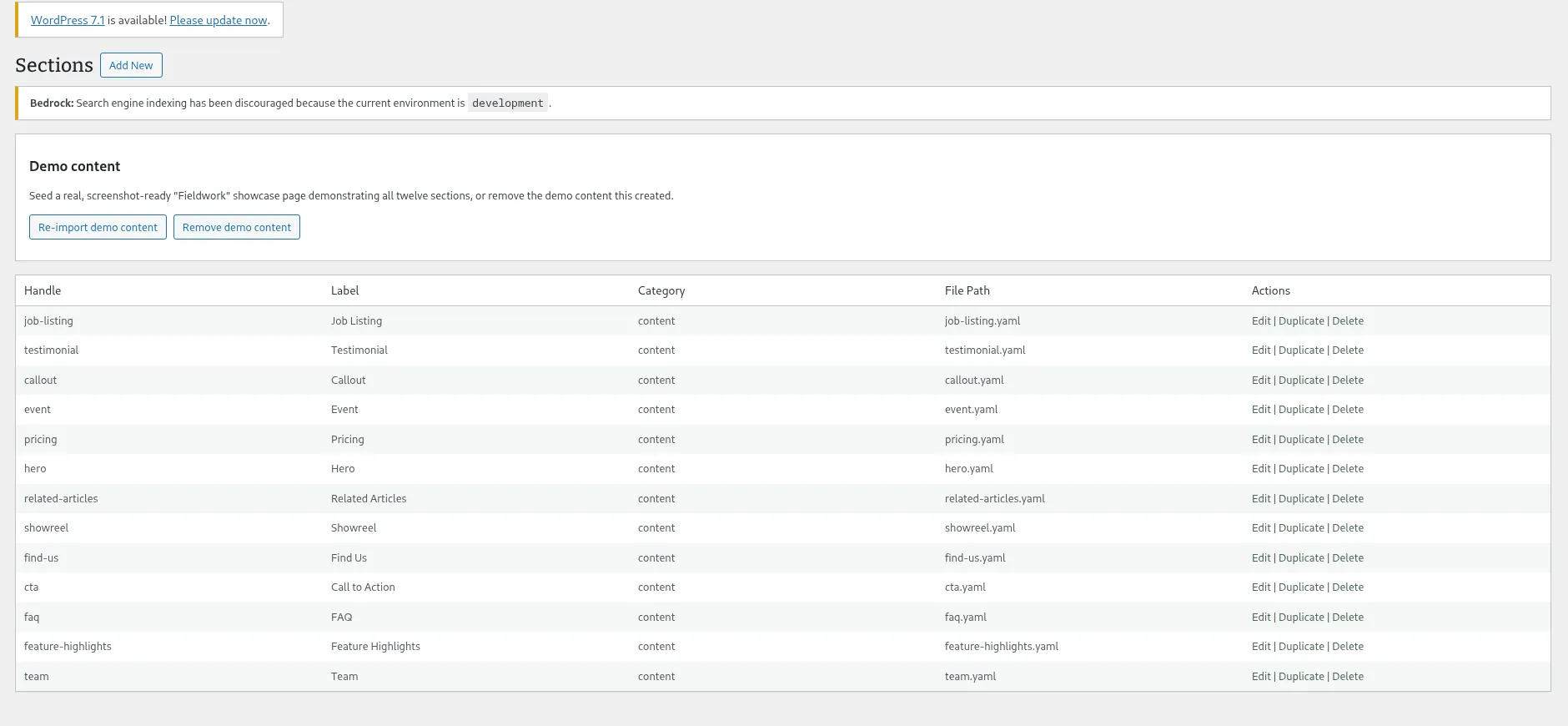
Section titled “Sections and Post Types”The two visible submenus, Sections and Post Types, each list the matching config files (handle, label, category, and on-disk file path for sections; filename and path for post types) with Edit, Duplicate, and Delete actions per row. Add New on either page opens the same hidden edit page used for editing, just with an empty starting config.
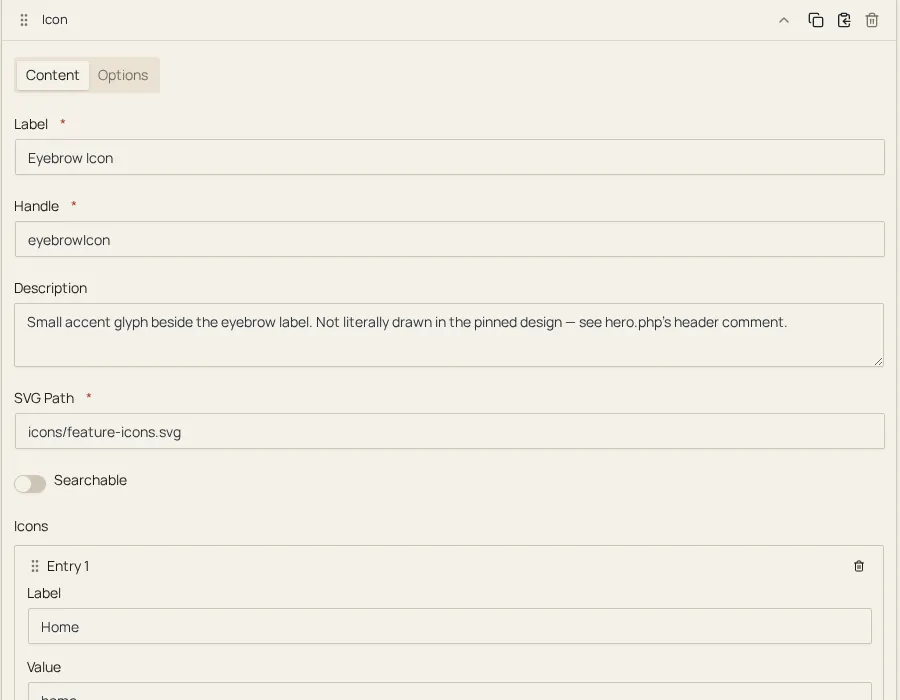
The section editor’s inline field-type config gives you label, handle,
templatePath, category, icon, image (the thumbnail the section
picker shows), description (the line shown under the section’s name in the
section picker’s list view), the section’s fields:
list (rendered as
a nested sections-editor, so building a field’s config is form-driven the
same way any other page’s content is), and a migrations: repeater for
declarative rename/delete rules (see
Schema Evolution for what those do). The
post-type editor’s inline config keeps only the fields: list and the
migrations: repeater, and adds the preview/previewDebounce toggles.
Both editors also show the file’s path, which renames the file on save.
Submitting the form posts back through admin-post.php, behind a nonce and
a manage_options capability check, and writes the assembled config to the
same YAML file the CLI and hand-editing would touch: there’s exactly one
on-disk representation regardless of which of the three ways you wrote it.
A top-level key the editor has no field for (one you added by hand, or one
a later version of the schema adds) loads as an Inactive Fields entry,
and saving writes it back to the file unchanged, under its own key. Removing
the entry from Inactive Fields before you save deletes it from the file. Two
kinds of top-level key are not carried through the editor, so saving removes
them from the file: a key whose value is an empty list or map ([] or {}),
and a key named content or _filePath, the names the editor uses for its
own field list and file path.
A key inside a field’s config that the field’s form has no input for is kept
the same way, at every nesting depth: a field inside a repeater, a tab or a
children field’s inline section, and the inline section’s own keys. It shows
in the Inactive Fields panel inside that field’s card, and removing it
there before you save deletes it from the file. A field-level key is not kept
when its name is one of the editor’s field-form inputs (for example min,
placeholder or options on a field type that does not use them), when it is
one of the names the editor uses for its own markers (id, _id, _inline,
__kind, lostValues, _filePath or $sekWrapper), or when it contains a
dot. A field-level key whose value is an empty map ({}) is kept, but saving
writes it back as an empty list ([]). Unknown keys one level further down,
inside a field’s options, validation rules, showWhen or adornment, are
not kept either: saving removes them.
A field whose type has no form in the editor (auto-uuid, migration-path,
section-picker, and global-section when the premium plugin is not active)
shows as an Unknown section type card that names only the field type. The
card has no inputs and no Inactive Fields panel, so the field’s label,
handle and any other keys it carries are not shown in the editor, but saving
keeps them. A children field’s
sections: entry that names a section by its handle shows as a Referenced
section card. Saving writes both back to the file unchanged, at every
nesting depth. Neither can be edited or removed in the editor: change them in
the YAML file.
Field-type discovery
Section titled “Field-type discovery”The field editor’s own field-type picker is populated by scanning the
plugin’s bundled configs/field-types/ directory (plus the premium plugin’s
own directory, when active, with premium field types overriding a free
field type of the same handle on collision) for field-type YAML files,
validating each against a field-type schema. A file that fails to parse or
validate is excluded and surfaces as an admin notice naming the file and the
error: the picker never silently shows a broken field type.
Getting started without an existing .sek.yml
Section titled “Getting started without an existing .sek.yml”If the active theme has no .sek.yml, the Config Editor shows a one-time
setup form instead of the Sections list: two directory inputs (defaulted
to resources/views/blocks and config/post-types) that write a new
.sek.yml and create both directories. When file changes are turned off
(DISALLOW_FILE_MODS), a notice to add .sek.yml to the theme by hand
appears in the form’s place. See
the .sek.yml theme opt-in for what the
written file looks like and how discovery works afterward.
Demo content
Section titled “Demo content”The Sections page also carries an Import Demo Content panel, backed by a
DemoImporter that’s idempotent: importing when content is already seeded
reports that instead of duplicating it, and removal is a separate, explicit,
opt-in button (never triggered automatically by a theme switch or plugin
deactivation).
Premium admin surfaces
Section titled “Premium admin surfaces”These submenus appear under the same Config Editor top-level menu when the premium plugin is active:
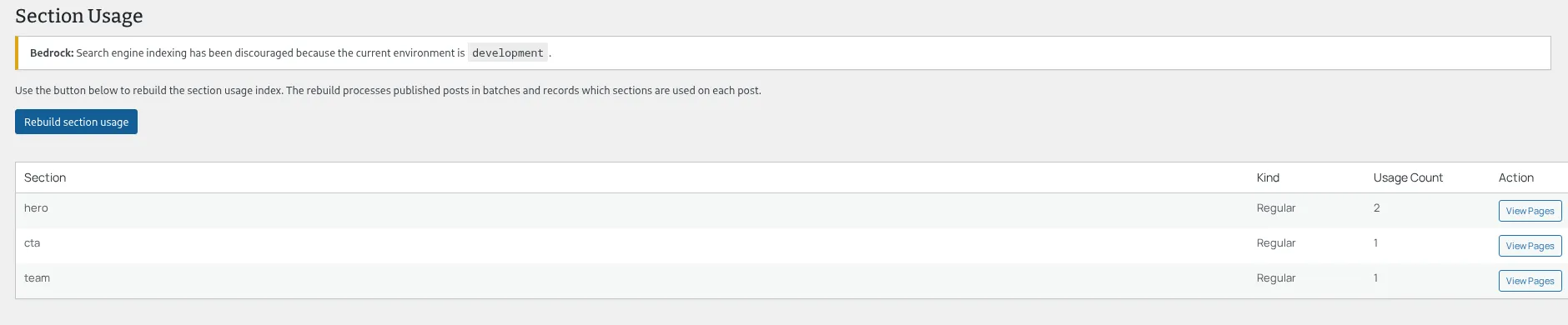
- Section Usage Premium: a rebuild-index button and a ranked table of section-type usage across the site, with a per-row “view pages” detail.
- Mass Migration Premium: preview, apply, and apply-all for rolling a config change out across every existing instance of a section at once. See Mass Migration.
- Global Sections Premium: the list-and-edit surface for authoring
shared section instances, reached from anywhere a
global-sectionfield points at one.
Here’s what the Section Usage screen’s ranked table looks like, a premium-download feature:
Each is a product-tier distinction only: they answer whether a capability ships in the free or the premium download, nothing about how that split is built.
Where to go next
Section titled “Where to go next”- The
sekCLI: the command-line counterpart to everything on this page. - Config & YAML reference: the file format this UI reads and writes.
- Global sections authoring Premium: the developer side of the Global Sections admin surface.