Editing field values & conditional visibility
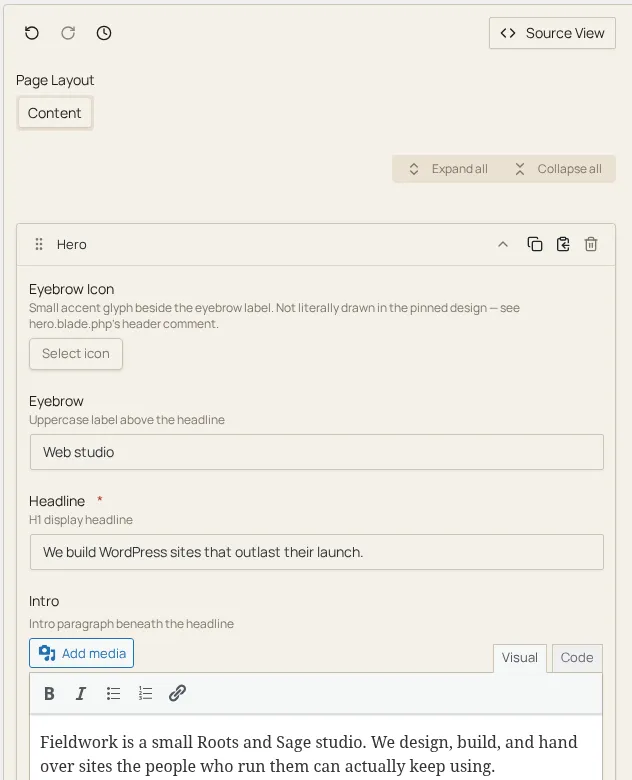
Expand a section’s card and its fields render as a form: one control per field, in the order the section type defines them. Whatever you type, select, toggle, or upload writes straight into that section’s stored values; there’s no separate “save field” step, and every change is folded into the page’s undo history (see History, source view & clipboard).
Conditional visibility
Section titled “Conditional visibility”Some fields only appear once a sibling field holds a particular value. A
developer configures this on the field (showWhen, pointing at another
field’s handle and an expected value; see the
field-types reference for how it’s
authored); as the content editor, what you experience is simpler: the form
changes shape as you work. Turn on a toggle, or pick an option, and a
previously-hidden field slides into view; change it back and the field
disappears again. The dependent field only ever watches the sibling
field it’s configured against (not the whole form), so toggling an
unrelated field never causes fields elsewhere to appear or disappear.
A couple of practical notes on how the comparison behaves:
- When the watched field is a switch-style boolean, “off” matches
whether the sibling is explicitly
falseor simply hasn’t been touched yet (empty/unset), so a dependent field stays hidden by default until you deliberately turn the switch on. - A watched field holding the number
0is not treated as “off.” If a numeric field’s condition expects a falsy value, an explicit0still counts as a real, present value.
Hiding a field doesn’t discard whatever value it already held: it’s still there in the stored data, just not shown while its condition isn’t met. Re-satisfy the condition later (in the same session, or on a future edit) and the field reappears with its earlier value intact.