Undo/redo, source view, and section clipboard
Three related tools live in the editor toolbar and on each section card: undo/redo history, a read-only JSON view of what’s actually stored, and a clipboard for copying whole sections between pages.
Undo / redo
Section titled “Undo / redo”The toolbar’s undo and redo buttons (and Ctrl/Cmd+Z, Ctrl/Cmd+Shift+Z, or Ctrl+Y on Windows/Linux) step backward and forward through every change you’ve made this session: field edits, adding, removing, duplicating, and reordering sections, and deleting an inactive value from the Inactive Fields panel. The shortcuts are suppressed while you’re typing inside a rich-text field, so they don’t fight with that field’s own undo.
Rapid edits to the same field (the keystrokes of one typing session, for instance) collapse into a single undo step as long as they land within about half a second of each other; pause longer than that, or edit a different field, and it becomes a new step. Section-level operations (add, remove, duplicate, reorder) never coalesce this way: each one is always its own, separately undoable step, even if you fire off several in quick succession.
History is bounded, not infinite: older entries drop off once you’ve made enough changes in a session. Practically, this only matters for very long editing sessions: undo/redo cover the ordinary back-and-forth of composing a page without you needing to think about the limit.
Source (JSON) view
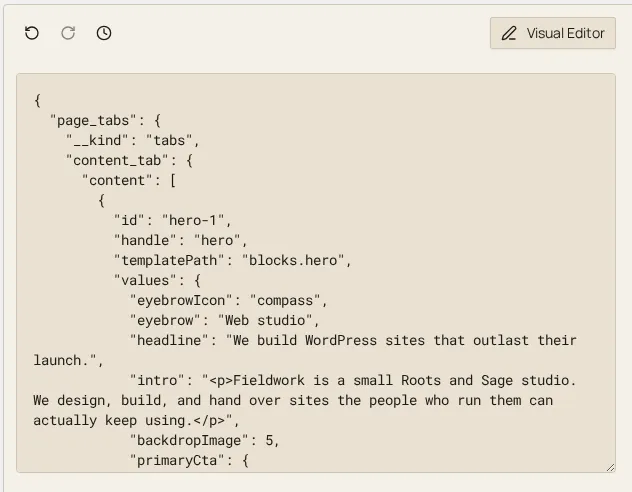
Section titled “Source (JSON) view”The Source View toggle in the toolbar swaps the visual form for a read-only textarea showing the page’s current stored values as pretty-printed JSON: the same data the form is reading from and writing to, exactly as saved. It’s a view, not an editor: there’s nothing to type into it. Use it to see precisely what a section holds, including values a field’s visual control doesn’t surface directly. Toggle back to Visual Editor to keep working.
Section clipboard
Section titled “Section clipboard”Every section card carries a copy-to-clipboard action alongside Duplicate and Remove. Copying a section sends its type and its current values to a per-user clipboard stored on the server, so unlike Duplicate (which only works within the same page), a copied section can be pasted into a different page entirely, or back into the same one.
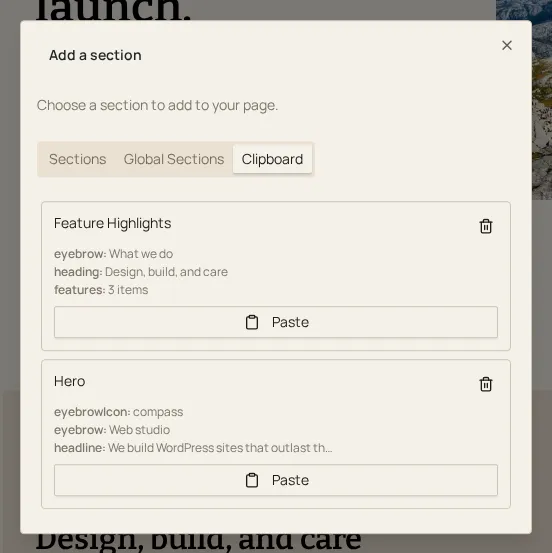
To paste, open Add a section and switch to the Clipboard tab: each entry shows what was copied, with Paste (adds it as a new section at that spot, using the copied values) and Remove (deletes the clipboard entry itself, not any section on a page) actions. A clipboard entry whose section type isn’t allowed on the page you’re currently editing is greyed out with an explanatory tooltip rather than hidden, so you can see what you’ve got even where you can’t use it here.
The clipboard holds at most 50 entries; once you’re within a few of that cap the Clipboard tab shows a notice, and the oldest entries drop off first once the limit is reached.