Install demo sections
If your active theme has no SEK configuration yet, SEK can set one up for you.
Install demo sections writes a small working setup into the theme (a
.sek.yml, two example sections, a post-type config, and a page template),
creates a demo page, and leaves you with something you can open in the editor
straight away. Nothing is written until you confirm a screen that lists every
change, and Remove demo install reverses it.
This page is for a site owner on a classic theme. To bring SEK to a theme by hand instead, follow the plugin-only path.
Where the card appears
Section titled “Where the card appears”Open Config Editor → Sections in wp-admin while the active theme has no
SEK config. The screen shows its setup heading and, above the setup
instructions, a card titled Install demo sections:
Add two example sections and a demo page to your active theme to see SEK working straight away. You review every change before anything is written, and you can remove it all again.
The card’s Review the changes button opens the confirmation screen. That screen is the only place the install runs from; the card itself writes nothing.
The card looks different when an install is still recorded for this theme
even though the theme has no SEK config. That happens when an earlier
removal deleted the untouched .sek.yml but kept files you had
edited. The card is then titled Demo
sections, says “A demo install is still recorded for this theme because an
earlier removal kept files you had edited. Delete those files or restore
their original contents, then run Remove demo install again.”, and offers
Remove demo install instead of Review the changes.
What the install writes
Section titled “What the install writes”The confirmation screen opens with “Installing the demo makes these changes to the theme” followed by the theme’s name, then lists each change.
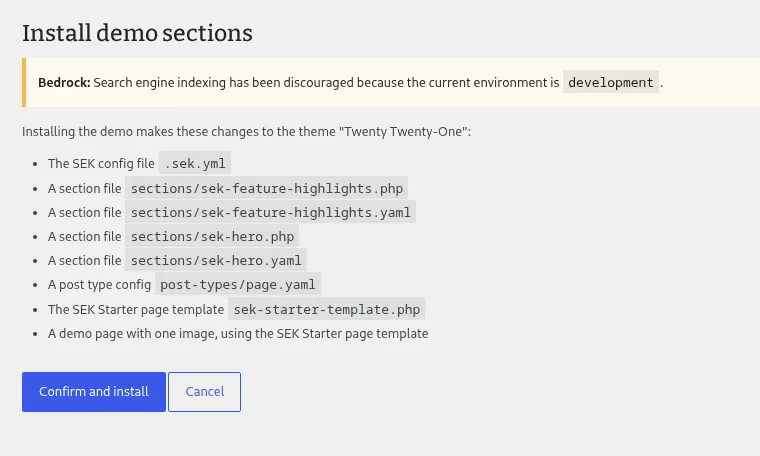
The install writes these files into the theme:
| File | What it is |
|---|---|
.sek.yml |
The SEK config: it points SEK at the sections and post-types directories. |
sections/sek-hero.yaml and sections/sek-hero.php |
A hero section: eyebrow, headline, intro, backdrop image, and one primary button. |
sections/sek-feature-highlights.yaml and sections/sek-feature-highlights.php |
A feature-highlights section: eyebrow, heading, and a list of features. |
post-types/page.yaml |
The post-type config that lets the page post type use both sections. |
sek-starter-template.php |
A page template named SEK Starter. It prints the page’s sections through sek_render_sections() and falls back to the_content(). |
The files are written into the theme that is named on the screen. That is the active theme’s own directory, except under a child theme, where the files go into the parent theme (the same place SEK reads its config from). The install never overwrites a file that already exists.
Alongside the files, the install creates a demo page titled SEK starter
(slug sek-starter-demo) that uses the SEK Starter page template, with one
image in its hero section. Its content is two sections: the hero, whose
button reads “See how it works” and links to the feature-highlights section
below it, and the feature highlights.
The install is all or nothing. If any write fails, or the demo page cannot be created, everything it wrote is undone, the theme is left as it was, and a notice says why. If the undo itself cannot finish, the notice lists the files still in the theme so you can delete them from the theme folder.
The optional page.php edit
Section titled “The optional page.php edit”The screen can also offer one optional change, Also edit page.php so your
other pages can show SEK sections, as an unchecked checkbox. Ticking it
replaces the single the_content() call in the theme’s page.php with a call
that prints the page’s SEK sections and falls back to the_content() when a
page has none:
if (function_exists('sek_render_sections') && ($sek_out = sek_render_sections()) !== '') { echo $sek_out; } else { the_content(); }The edit is offered only when it can be made safely:
page.phphas exactly one plainthe_content();call, as a statement of its own. Any other mention ofthe_content(a second call, a method call, a hook callback name, or a call with arguments) means the edit is not offered.page.phpis a regular file, not a symlink, and nopage.php.sek-backupalready exists.- The active theme is not a child theme with its own
page.php. WordPress renders pages from the child’s file, so editing the parent’s would have no effect.
Before the edit, the install writes the original to page.php.sek-backup and
checks the backup matches. Removing the install restores page.php from that
backup, but only while both files are as the install left them. If page.php
changed after the install, or the backup was edited or deleted, both files are
left in place and a notice says so.
When the install is not offered
Section titled “When the install is not offered”If the install cannot run, the screen shows The demo cannot be installed
into this theme with the reasons, and no confirm button. Below the reasons
it falls back to manual setup: “You can still set up SEK by hand: create the
config file below, then add your own sections”, with the standard config
creation form. When file changes are turned off (DISALLOW_FILE_MODS), a
notice to add .sek.yml to the theme by hand takes the form’s place, because
SEK cannot write the file there either. The reasons are:
- The theme’s folder could not be found.
- The theme is built for the site editor. The install supports classic
themes only. SEK detects this from a
templates/index.htmlorblock-templates/index.htmlin the theme. - WordPress cannot write to the theme folder directly. The install writes
through the WordPress filesystem API and needs the
directmethod, so a read-only theme folder, or a server that would ask for FTP credentials, cannot take it. - File changes are turned off on the site.
DISALLOW_FILE_MODSis set. - The theme already has a file the install would write. The install never overwrites, so any of the files above already existing stops it.
- A config folder already holds YAML. The theme’s
sectionsorpost-typesfolder already contains config files. - The demo is already installed. In this theme the screen links to the removal screen. When an earlier removal kept files you had edited, the reason says so and asks you to delete those files or restore their original contents, then run Remove demo install again before you reinstall. If the install was recorded for a different theme, the message names that theme and tells you to switch back to it and remove the demo there before installing here.
The installed state
Section titled “The installed state”While an install is recorded, the configured Sections screen shows a Demo sections panel: “The demo sections install is in place. Removing it deletes the files it added to the theme, the demo page and its image.” The panel has View demo page (while the demo page exists) and Remove demo install buttons.
While the install is in place, the demo content panel on the same screen says “The Fieldwork showcase cannot be imported while the demo sections install is in place.” The theme is running the two-section starter config, which the showcase fixture cannot import against.
Removing the demo install
Section titled “Removing the demo install”Remove demo install opens a screen that itemises the reversal: each file it
will delete, each folder it will remove if empty, the page.php restore when
one was made, and the demo page and its image. Confirm and remove runs it.
- Untouched files are deleted; edited files are kept. A file is deleted only while its contents still match what the install wrote. A file you have edited since is kept, not deleted, and the notice after removal lists it.
- Folders go only when empty, deepest first.
- The demo page and its image are removed even when some theme files were kept.
- A kept file keeps the install on record. The notice says to delete the kept files or restore their original contents and then run Remove demo install again. The demo cannot be reinstalled until then.
- An install recorded for another theme is removed from that theme. The screen names the theme and links back to Sections; switch back to that theme to remove it. Nothing is removed from the current theme.
The demo page on the front end
Section titled “The demo page on the front end”Open the demo page from View demo page, or edit it from Pages. It
renders on the front end through the SEK Starter page template, which prints
the page’s sections with sek_render_sections(). In the editor the page’s
sections compose and edit like any other, and the preview updates live because
the preview renders the page’s assigned template, which calls the same tag
(see Live preview).
Because the install is plain-PHP templates, it needs no render-mode setting:
the default is 'classic'. See Blade templating & the render
pipeline.
Continue to Your first section to add a section of your own.